
Smart feeder troubleshooting
A feeder alert, log entry, camera clip, empty bowl, or portion in the bowl can be useful evidence. None of those signals proves by itself that the intended pet ate the intended amount. Start with the pet and the meal, arrange human takeover when needed, and only then work through the device.
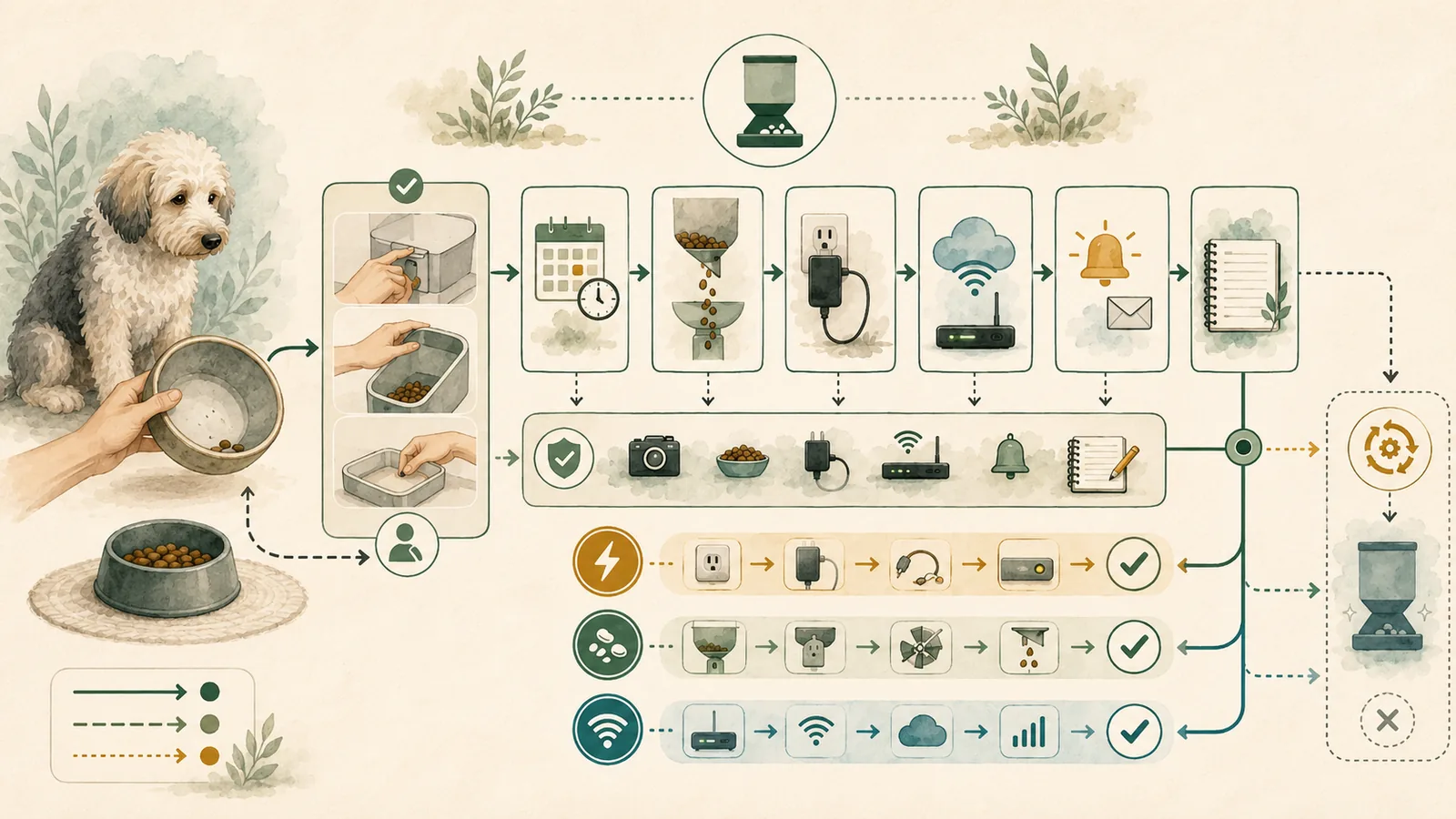
Quick answer
Do not begin with a factory reset: first ask whether the pet shows anything concerning and whether the intended meal was directly confirmed, using a veterinarian or emergency animal hospital for concerning signs and the pet’s established qualified plan for a feeding-sensitive situation.
When the meal is not directly confirmed, use the household’s written operational response trigger to arrange authorized in-person verification and human takeover rather than treating that trigger as a medical threshold or repeating remote app checks.
Once the pet and meal are accounted for, investigate power, food path, schedule, manual dispense, cleaning, network, notifications, and model-specific behavior in a non-destructive order while preserving screenshots, schedules, non-sensitive logs, model details, and food-lot information before any reset.
On a small screen, scroll the table horizontally.
| What you know | What it does not prove | Next priority |
|---|---|---|
| The pet shows concerning signs | A feeder status cannot explain or diagnose the pet | Qualified professional or emergency animal hospital |
| The meal is not directly confirmed and the household trigger is reached | Another app check cannot substitute for seeing the pet | Authorized in-person verification and manual fallback |
| The meal is directly confirmed, but the app or feeder signal looks wrong | The signal still does not establish the root cause | Exact-product device checks |
| A feeding-sensitive case lacks an existing professional plan | Generic troubleshooting cannot create that plan | Stop and obtain qualified guidance |
Pet condition and direct meal confirmation determine the next action; device troubleshooting comes after human verification and fallback.
Key facts
- First priority
- Check the pet and directly confirm the meal before extended device troubleshooting.
- Human fallback
- Use the household’s written response trigger and authorized in-person plan when remote evidence is insufficient.
- Evidence boundary
- Logs, alerts, access events, camera clips, and bowl state each support only narrow observations; none alone proves consumption.
- Reset boundary
- Preserve schedules, screenshots, device state, non-sensitive logs, food details, and the last directly confirmed meal before a destructive reset.
What counts as evidence - and what does not
A connected feeder creates several kinds of signals. The useful part is keeping each signal tied to the narrow fact it can support. A software event may show that the app recorded a scheduled or manual action. A camera clip may show a limited view during a limited period. An access event may show a tag interaction. An empty bowl may show only that the bowl is empty when someone looked.
The decision that matters in a missed-meal event is stronger: did food reach the bowl, and did the intended pet eat the intended amount? None of the common remote signals answers both questions by itself. Even food visible in a bowl is not consumption confirmation. A second pet, a spill, a blockage, a stale log, a network delay, or a camera blind spot can produce misleading reassurance or concern.
On a small screen, scroll the table horizontally.
| Signal | Narrow fact it may support | What remains unknown |
|---|---|---|
| Dispense or activity log | The platform recorded an event | Physical dispense, amount, and consumption |
| Notification | The app or phone delivered a message | Whether food reached the intended pet |
| RFID access event | A tag interaction was recorded | Whether the pet ate, and how much |
| Camera clip | What appears in the captured frame and period | Events outside the frame, recording window, or detection path |
| Food visible in the bowl | Food is present at inspection time | Whether the intended pet consumed the planned meal |
| Empty bowl | No food is visible at inspection time | Who ate it, whether it spilled, or whether the meal was complete |
Treat each signal as narrow evidence: no log, alert, tag event, camera clip, or bowl state alone proves that the intended pet consumed the meal.
Check the pet before the feeder
Device troubleshooting should never delay attention to the pet. This article does not interpret symptoms or tell you whether a specific situation is urgent. Its boundary is simpler: if the pet shows something concerning, use a veterinarian or emergency animal hospital rather than trying to solve the issue through a feeder menu.
The same fail-closed rule applies to pets whose food timing, quantity, or composition is part of a professional plan. Automation can carry out settings, but this page cannot create a replacement plan when the device result is uncertain. Save the existing plan and support contacts before relying on a feeder during an absence.
When the pet looks normal but the meal is uncertain, direct observation still comes before a destructive device reset. An authorized person can verify the pet, inspect the bowl and surrounding area, check the food path, and use the owner’s written manual fallback. That human observation creates a much better basis for the next decision than repeating remote commands.
Use a household response trigger - not a medical threshold
Before relying on a feeder, the household should decide how long it is willing to remain uncertain before someone checks in person. The decision should reflect access, travel time, caregiver availability, the pet’s existing qualified plan, and the limits of the device. The number belongs in a private household record.
Do not publish or share door codes, passwords, account tokens, or detailed medical records with that operational record. The response trigger simply tells the household when remote uncertainty becomes unacceptable. It does not say that a pet can safely go without food for that period.
If the trigger is reached and the meal has not been directly confirmed, arrange human verification. If nobody can reach the home, that is a backup-plan failure regardless of what the feeder app reports.
Switch to manual fallback before extended troubleshooting
A useful fallback is intentionally ordinary: the pet’s existing food, the owner-approved amount and unit, a clean bowl and measuring tool, written instructions, an authorized caregiver, and a way to record the last directly confirmed meal. The fallback should not require the caregiver to diagnose the feeder or invent a new feeding plan.
Manual fallback is not evidence that the feeder failed. It is a way to separate the pet-care job from the device-investigation job. Once the pet’s immediate routine is handled according to the owner’s existing instructions, the feeder can be checked without letting the troubleshooting session become the only path to food.
On a small screen, scroll the table horizontally.
| Record | Why it matters | Privacy limit |
|---|---|---|
| Exact food product, lot, and best-by date | Supports consistency and traceability | Do not add unrelated medical detail |
| Owner-approved amount, unit, and schedule | Prevents improvisation | Not a recommendation from this article |
| Primary and backup caregiver | Identifies who can take over | Keep home-access details in a private record |
| Last directly confirmed meal | Separates observation from app events | Record only what was actually observed |
| Manufacturer and qualified-professional contacts | Defines escalation routes | Do not include passwords or account tokens |
A usable fallback records the owner’s existing instructions and who can act without exposing credentials or inventing a new feeding plan.
Match the symptom to the right check
“Missed meal” can describe several different observations. The bowl may be empty, a scheduled event may be late, the amount may look wrong, an app may be offline, a tag may not open a lid, a camera clip may be absent, or nobody may have watched the pet eat. Those are different evidence states and should not be collapsed into one generic reset workflow.
On a small screen, scroll the table horizontally.
| Observed symptom | First device checks after pet/manual fallback | Do not infer |
|---|---|---|
| No food in bowl | Power, food level, kibble fit, outlet, rotor/conveyor, manual dispense, reassembly | That the pet definitely missed the meal |
| Late or missing scheduled event | Power, stored schedule, time zone, router/network, reboot, reconnection | Measured timing accuracy from a support page |
| Wrong amount | Food level/properties, priming, alignment, debris, manual test | Independent dispense accuracy |
| Offline or no notification | Power, router, app state, notification settings, phone permissions | That offline state equals no dispense |
| Selective-access failure | Exact tag, pairing, reader mat, interference, tag position | Pet comfort or recognition rate |
| Missing camera clip | Network, camera state, local storage, cloud plan, recording conditions | That food was not dispensed or eaten |
Route the observed symptom to the matching non-destructive check instead of collapsing every uncertainty into a factory reset.
Power and battery checks
Start with the non-destructive power path: wall outlet, original or documented adapter, cable seating, visible power state, and the correct battery configuration for the exact model. A battery compartment is not proof that useful backup batteries are installed, fresh, correctly oriented, or able to support every feature.
PETLIBRO documents a narrowed PLAF301 battery mode in which scheduled feeding may continue while Wi-Fi is disabled. PetSafe documents an optional four-D-cell backup path for its second-generation Smart Feed, but this package did not measure runtime. PETLIBRO’s camera-feeder records also separate feeding from camera and connected behavior under constrained conditions.
On a small screen, scroll the table horizontally.
| Architecture | Documented narrow behavior | Still untested |
|---|---|---|
| PETLIBRO One RFID / PLAF301 | Three D cells may support stored feeding while Wi-Fi is disabled | Runtime, schedule accuracy, battery condition, recovery |
| PetSafe Smart Feed Gen 2 | Powered stored schedules may continue offline; remote functions narrow | Runtime, timing accuracy, notification behavior in this household |
| PETLIBRO Granary Camera / PLAF203 | Feeding and camera/cloud paths have different dependencies | Actual dispense, recording, reconnect, and battery performance |
Battery and offline documentation describes narrow behavior, not measured runtime, successful dispensing, or recovery in this household.
Food-path and dispense checks
Use the exact manual before touching the food path. A reasonable sequence is to confirm food level and compatible food, inspect the outlet, look for debris or a blocked rotor/conveyor, verify removable parts are seated correctly, and run the documented manual-feed test. Do not reach into a moving mechanism or improvise disassembly beyond the manufacturer’s instructions.
PLAF301 documentation limits the frozen path to dry kibble in its stated size range. PetSafe’s retained records contain a conflict around semi-moist food, so this package does not treat semi-moist use as settled. Wet or refrigerated food is outside the frozen troubleshooting path for these exact products.
A successful manual command still needs physical verification. The app can record a command even when the amount, path, or final consumption remains uncertain.
Schedule and time-zone checks
Compare the feeder’s displayed time, phone time, account time zone, stored meal list, and recent changes. Travel, daylight-saving changes, reconnection, reset, or app migration can create configuration uncertainty. Save screenshots of the existing schedule before changing it.
A reboot and a factory reset are not interchangeable. PetSafe documents that rebooting preserves programming while factory reset deletes programmed meals and settings. PETLIBRO support also includes reset and reconnection in some recovery sequences. Use destructive reset only after evidence is preserved and the household accepts that schedules may need to be recreated.
Network, app, and notification checks
Separate three questions: Is the feeder powered? Is its stored schedule still present? Can the app and cloud currently communicate? A router or internet problem can remove remote control and notifications without proving whether a powered local schedule ran.
Check the exact Wi-Fi band, router reachability, app login, current device status, notification settings, and phone permissions. Refreshing the app or signing in again may clear a stale display, but a cleaner display is not retroactive proof of a meal. Record both the original signal and what changed.
RFID and selective-access checks
For PLAF301, use the dedicated PETLIBRO tag and reader workflow. Confirm the exact tag is paired, the reader mat and feeder are positioned as documented, obvious interference is removed, and the tag is presented within the documented path. Do not substitute an implanted microchip or another manufacturer’s tag.
An access event is not consumption proof. It may help narrow whether the selective-access mechanism recognized the tag, but direct pet and meal verification is still required when the meal matters.
Camera and recording checks
A missing clip should be investigated as a camera or recording symptom, not treated as proof of a missed meal. Check power, network, camera state, local-media state, cloud-plan state, and the exact conditions under which the vendor says recording occurs.
Likewise, a clip showing the feeding station proves only what appears in that frame and period. It may miss the start or end of a visit, another pet, a spill, food remaining outside the view, or a later event. PETLIBRO’s sibling-feeder abnormal-meal call documentation is not generalized to PLAF301 or PLAF203.
Reset without destroying evidence
Before reset, save the exact model, serial/order details if available, schedule screenshots, time-zone state, app/device status, non-sensitive logs, notification screenshots, food product and lot, and the manual checks already performed. Do not put passwords, access codes, or account tokens into a shared incident record.
On a small screen, scroll the table horizontally.
| Preserve | Reason | After reset |
|---|---|---|
| Meal schedule and time zone | Reset may delete programming | Recreate and independently verify |
| Power/network/app state | Supports root-cause discussion | Record what changed |
| Food path and manual-test result | Separates mechanical from connected symptoms | Repeat only as the manual allows |
| Non-sensitive screenshots and timestamps | Supports manufacturer escalation | Do not assume reset proves repair |
| Last directly confirmed meal | Keeps pet evidence separate from device data | Continue direct verification |
Preserve schedules, device state, food-path results, timestamps, and the last confirmed meal before any reset that may erase evidence.
Cleaning and reassembly
Food residue, debris, a mis-seated part, or moisture around electronics can complicate troubleshooting. Follow the exact model’s removable-part, wetting, detergent, rinsing, and drying instructions. Do not immerse or wet the electronic base, reader, tag, or other excluded parts.
After cleaning, allow parts to dry fully, reassemble in the documented order, verify the food path, and run only the permitted manual test. A support sequence cannot prove hygiene, long-term reliability, or successful repair in this household.
Escalation and incident records
Manufacturer support is appropriate when exact-model checks do not resolve power, schedule, food-path, tag, app, notification, camera, firmware, or reset uncertainty. Send the model, symptom, time, power/network state, food details, steps performed, and non-sensitive evidence. A support page or ticket still does not establish failure prevalence or guarantee resolution.
Qualified professional help is the correct path when the pet shows something concerning, when an existing professional feeding plan requires it, or when a feeding-sensitive case lacks a usable plan. This page does not diagnose, treat, define portions, or set a medically safe delay.
On a small screen, scroll the table horizontally.
| Situation | Primary route | Evidence to carry forward |
|---|---|---|
| Pet shows concerning signs | Veterinarian or emergency animal hospital | Direct pet and meal observations; existing plan |
| Meal unconfirmed and household trigger reached | Authorized in-person caregiver | Written fallback, last confirmed meal, access confirmation |
| Exact device workflow remains unresolved | Manufacturer support | Model, timestamps, power/network state, checks, screenshots |
| Food quality or product concern | Preserve food package and lot; use appropriate authority/manufacturer route | Product name, lot, best-by date, purchase and incident details |
Escalate pet concerns to qualified care, unconfirmed meals to an authorized caregiver, and unresolved exact-device workflows to manufacturer support.
On a small screen, scroll the table horizontally.
| Group | Record | Avoid |
|---|---|---|
| Meal | Expected time, owner-approved amount, direct confirmation state | Inventing a portion or medical threshold |
| Pet | Plain observation and who observed it | Diagnosis or treatment conclusion |
| Food | Brand/product, lot, best-by date, visible condition | Discarding traceability information too early |
| Device | Exact model, power, network, schedule, food path, manual test | Resetting before preservation |
| Outcome | Manual fallback, support reference, next direct verification | Passwords, door codes, or account tokens |
Record only observed, non-sensitive facts that help the next person act; do not add diagnoses, credentials, passwords, door codes, or invented thresholds.
The package includes matching human-readable and JSON incident-record templates for private operational use. They are not forms on this public page and do not send or store data.
Sources
These sources support only the narrow authority, platform, product, model, or workflow described. Product support pages do not establish failure frequency, recovery success, or independent reliability.
- Proper Storage of Pet Food & Treats - U.S. Food and Drug Administration. Checked July 26, 2026. Food storage, lot information, cool/dry storage, and cleaning context; not feeder-performance evidence.
- Tips for Safe Handling of Pet Food and Treats - U.S. Food and Drug Administration. Checked July 26, 2026. General handling and cleaning guidance; not individualized veterinary advice.
- How to Report a Pet Food Complaint - U.S. Food and Drug Administration. Checked July 26, 2026. Complaint evidence fields; not a conclusion about a feeder incident.
- Save Your Pet Food Lot Number! - U.S. Food and Drug Administration. Checked July 26, 2026. Lot-number retention and traceability; not feeder-specific evidence.
- Frequently Asked Questions about Animal Drugs - U.S. Food and Drug Administration. Checked July 27, 2026. Veterinarian and emergency-animal-hospital routing; FDA does not diagnose or treat individual animals.
- Profile of the IoT Core Baseline for Consumer IoT Products - NIST. Checked July 26, 2026. Consumer-IoT product-system framing; not a feeder certification, reliability finding, or security audit.
- Securing Your Internet-Connected Devices at Home - Federal Trade Commission. Checked July 26, 2026. General connected-device, router, update, and account guidance; not exact-product implementation evidence.
- One RFID Smart Feeder - PETLIBRO. Checked July 26, 2026. Exact PLAF301 identity, dry-food range, dedicated tag, power, connectivity, and box contents; no use test.
- One RFID Smart Feeder Battery and Offline FAQ - PETLIBRO. Checked July 26, 2026. Battery-only schedule and disabled Wi-Fi statement; no outage or runtime test.
- How Do I Disassemble and Clean the One RFID Pet Feeder? - PETLIBRO. Checked July 26, 2026. Parts-specific wetting and drying limits; no hygiene outcome test.
- What Can I Do If the One RFID Feeder Does Not Dispense Food? - PETLIBRO. Checked July 27, 2026. Power, kibble, rotor, cleaning, and manual-feed checks; no incidence or success rate.
- What Should I Do If My One RFID Feeder Shows a Rotor Stuck Error? - PETLIBRO. Checked July 27, 2026. Rotor-stuck workflow; no prevalence or independent repair result.
- One RFID Feeder Schedule Troubleshooting - PETLIBRO. Checked July 26, 2026. Power, restart, interference, reset, and reconnection workflow; localized and untested.
- One RFID Feeder Will Not Boot or Stops Working - PETLIBRO. Checked July 27, 2026. Adapter, cord, outlet, and battery checks; no electrical measurement.
- Unable to Update One RFID Feeder Firmware - PETLIBRO. Checked July 26, 2026. Firmware troubleshooting; no update execution or support-lifetime guarantee.
- Pair the Collar Tag With the One RFID Feeder - PETLIBRO. Checked July 27, 2026. Dedicated-tag pairing and interference checks; no pet-wear or recognition-rate test.
- One RFID Feeder Food Outlet Blocked - PETLIBRO. Checked July 26, 2026. Outlet inspection, cleaning, app-log review, and firmware qualification; no controlled blockage test.
- One RFID Feeder Status Unknown - PETLIBRO. Checked July 27, 2026. Power, restart, reset, reconnection, and schedule recreation; no executed recovery.
- One RFID Feeder Red Exclamation Mark - PETLIBRO. Checked July 26, 2026. App refresh and relogin workflow; indicator meaning was not observed.
- Share One RFID Feeder Device Access - PETLIBRO. Checked July 26, 2026. Separate-account sharing workflow; no permission or notification execution.
- Contact PETLIBRO Support - PETLIBRO. Checked July 26, 2026. Manufacturer support route; not response-time or resolution-quality evidence.
- Granary Smart Camera Feeder - PETLIBRO. Checked July 26, 2026. Exact PLAF203 product architecture; no checkout or use test.
- How the Granary Camera Feeder Works - PETLIBRO. Checked July 26, 2026. Setup, power, Wi-Fi, feed, blockage, recording, and escalation workflow; no execution.
- Does the Camera Feeder Need to Be Online to Record? - PETLIBRO. Checked July 26, 2026. Exact network-interruption recording boundary; no outage test.
- How to Set Up the Granary Camera Feeder - PETLIBRO. Checked July 26, 2026. Power, reset, reload, app, Bluetooth, QR, and hotspot setup; no execution.
- PETLIBRO Feeder FAQ - PETLIBRO. Checked July 26, 2026. Powered-offline schedule and battery-mode snippets; localized and untested.
- Granary Smart Camera Feeder Specifications - PETLIBRO. Checked July 26, 2026. PLAF203 power, Wi-Fi, meals, portions, dry-food, and kibble fields; not US checkout or use evidence.
- What Is the Amount in One Feeding Portion? - PETLIBRO. Checked July 26, 2026. Volume-based portion variability by food properties; not a weight-accuracy measurement.
- Granary Smart Feeder Abnormal or Missing Meal Call - PETLIBRO. Checked July 30, 2026. Exact AF103/PLAF103 meal-call troubleshooting shows that this alert behavior has model-specific conditions; not evidence for PLAF301 or PLAF203 behavior.
- Smart Feed Automatic Dog and Cat Feeder, 2nd Generation - PetSafe. Checked July 26, 2026. Exact PFD00-16828 identity and documented food, power, Wi-Fi, meal, and app fields; no use test.
- Smart Feed Automatic Feeder, 2nd Generation Support - PetSafe. Checked July 27, 2026. Exact-model support index and manual route; not response-time or future-support evidence.
- Smart Feed Automatic Pet Feeder Is Offline - PetSafe. Checked July 27, 2026. Powered offline schedule continuation, network checks, and destructive-reset warning; no outage test.
- Smart Feed Not Sending Notifications - PetSafe. Checked July 26, 2026. Offline notification boundary, app settings, and phone permissions; no delivery measurement.
- Reboot or Reset Smart Feed Automatic Pet Feeder - PetSafe. Checked July 27, 2026. Reboot preserves programming; factory reset deletes programmed meals and settings; no executed reset.
- Smart Feed Will Not Power On - PetSafe. Checked July 27, 2026. Outlet, cord, generation, and backup-battery checks; no power or runtime measurement.
- Smart Feed Is Not Dispensing Meals on Time - PetSafe. Checked July 27, 2026. Time-zone, router proximity, and reboot checks; no timing-accuracy measurement.
- Smart Feed Is Not Dispensing the Correct Amount - PetSafe. Checked July 27, 2026. Low-food, priming, conveyor, debris, and alignment checks; no independent accuracy result.
- Disassemble and Clean Smart Feed - PetSafe. Checked July 26, 2026. Parts-specific wash, dry, and electronic-base limits; no hygiene outcome test.
- Set Up the Smart Feed Automatic Dog and Cat Feeder, 1st and 2nd Generation - PetSafe. Checked July 30, 2026. App, account, 2.4 GHz, pairing, schedule, power, and assembly setup; no execution.
- Smart Feed Dispensing Meals Outside the Scheduled Time - PetSafe. Checked July 30, 2026. Feed Now button and button-lock behavior; no proof of dispense accuracy or consumption.
- PetSafe App Downloads - PetSafe. Checked July 26, 2026. Current My PetSafe app listing for the exact model; no app or account workflow executed.
- Smart Feed 2.0 Quick Start Guide - PetSafe. Checked July 30, 2026. Exact PFD00-16828 guide contains conflicting dry-only and semi-moist wording; text and PDF pages were checked, but no product use occurred.