
Documentation-led troubleshooting guide
Battery drain and delayed locations are symptoms, not diagnoses. This guide separates expected battery-saving behavior from phone, network, charging and device problems, then shows what to record before a reset or support request.
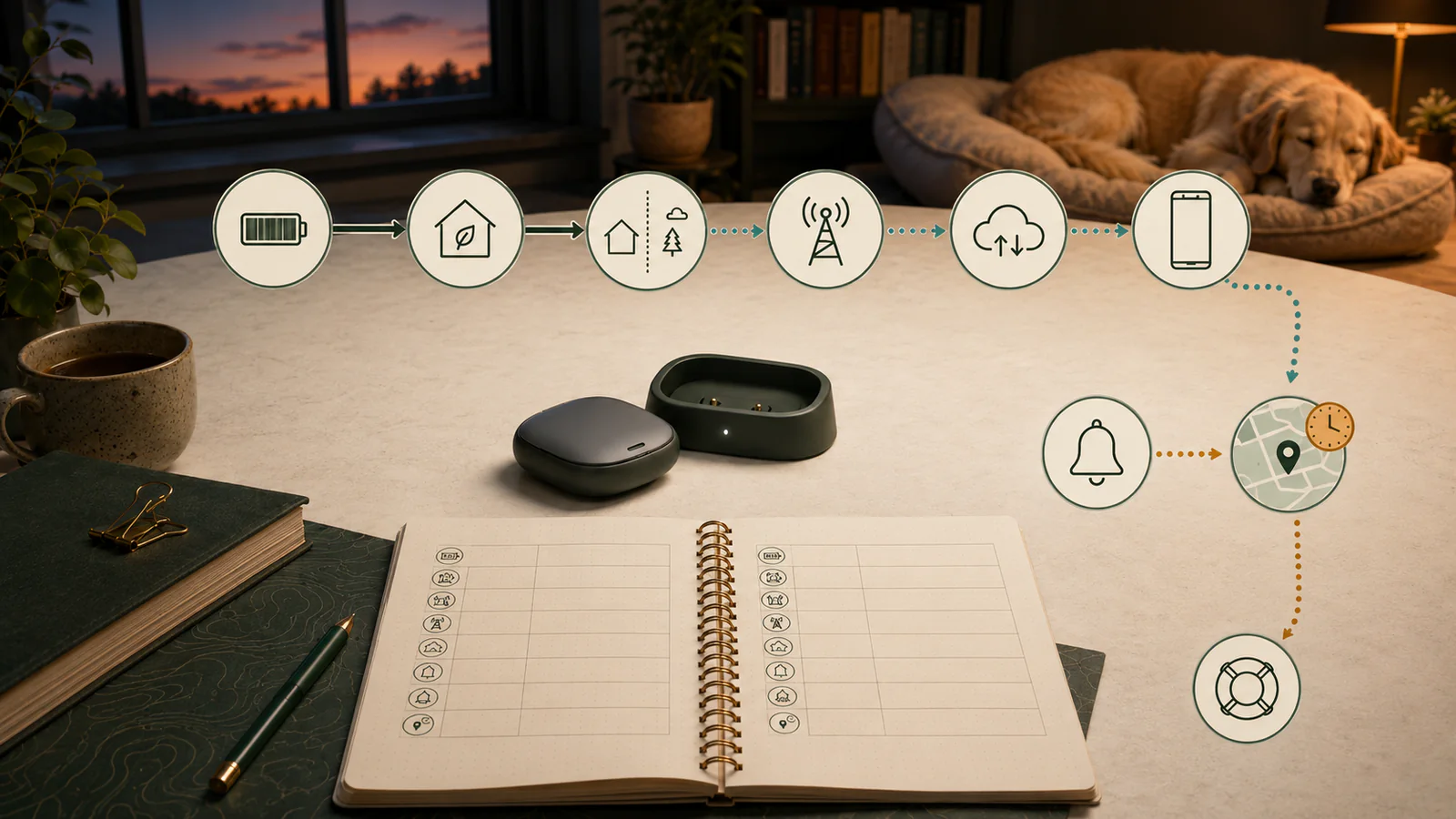
Quick answer
Start by asking whether the pet is safe and whether the device is behaving as its current mode predicts, because an indoor stale point or a documented saving state can look very different from an outdoor emergency-tracking session.
If the pet is missing, preserve the last-known time and connection state, use the product’s current emergency mode when available, and begin local recovery work without waiting for a battery experiment or repeated reset.
If the pet is safe, record timestamps, mode, status, battery display, LEDs, home state and phone settings before bounded checks; persistent failure after comparable checks belongs with support and does not by itself prove a defective battery or a required replacement.
Swipe horizontally to see all columns.
| Situation | Immediate route | Do not assume |
|---|---|---|
| Pet actually missing | Emergency tracking and local recovery now | That more resets will improve the last-known point |
| Device hot, swollen, smoking, damaged or wet at charging port | Stop using or charging and contact the manufacturer | A software setting is the cause |
| Stale point indoors or in a saving zone | Record the mode and run one bounded outdoor check if safe | GPS or cellular hardware has failed |
| Fast drain during Lost/LIVE use | Log mode duration, coverage and start/end battery | A normal-mode runtime should be identical |
| Issue repeats after comparable checks | Send a structured support packet | Replacement or warranty coverage is automatic |
Choose the next branch from safety, physical condition, current mode and repeatability; the symptom alone does not establish its root cause.
Key facts
- First gate
- Pet safety and physical device condition come before software troubleshooting.
- Diagnostic boundary
- Battery drain, stale locations, offline status and delayed alerts are observations, not root-cause findings.
- Useful record
- Exact model, time, mode, connection state, environment, battery display, LEDs, phone settings and bounded-check result.
- Escalation boundary
- Repeated comparable failure supports a structured support handoff, not an automatic defect, warranty or replacement conclusion.
Safety and recovery first
Generic troubleshooting is appropriate only when the pet is safe and the device can be handled without creating another risk. Do not simulate an escape, release a dog, enter traffic, trespass, or delay an active lost-pet response just to create a cleaner test.
Physical battery or charging concerns also leave the software branch. Unusual heat, swelling, smoke, odor, visible damage or a wet charging area should be treated as a stop-use condition and routed to current manufacturer support. This guide does not diagnose a lithium battery or prescribe disposal.
The dog GPS tracker buyer guide explains the wider selection boundaries. This page assumes the product is already owned and focuses only on a narrow troubleshooting record.
A symptom is not a root cause
“Battery draining,” “location delayed,” “offline,” “No GPS,” “alert late” and “not charging” describe what the user sees. They do not identify whether the limiting stage is power, GPS, the tracker’s cellular network, a home saving state, the vendor cloud, the phone’s internet connection, operating-system permissions or the app.
Swipe horizontally to see all columns.
| Observed symptom | Possible documented stage | Evidence to save |
|---|---|---|
| Map point is old | Indoor GPS, saving zone, normal cadence, network or cloud delivery | Last-location time, mode, status and environment |
| Battery percentage does not change | App may show the last reported value while offline | App timestamp plus device LED or physical state where documented |
| Zone alert is late | Detection, network, cloud, phone internet, OS notification or Low Power Mode | Boundary crossing time, mode and receipt time |
| Tracker says Offline or No GPS | Power, indoor sky view, local network, GPS or cellular connection | Status, LEDs, place and outdoor-test result |
| Charging appears stuck | Dock/cable/source, debris, wet port, full charge or stale app reporting | Physical charge indicator, supported charger and app time |
Save the time, mode, device state, environment, LEDs and phone context before assigning a cause to what the screen shows.
Battery-drain checks
First compare like with like. A day with emergency/live tracking, frequent light use, poor GPS or cellular conditions and little time in a Base or Power Saving Zone is not comparable with a quiet day at home. The current Fi battery guidance and Tractive battery guidance describe conditional estimates, not a guaranteed runtime for every household.
Build at least two comparable records before concluding that drain changed. Use the same product, charging endpoint, approximate routine, mode, home-state exposure and observation window. A short percentage drop cannot be projected into a full battery-life claim.
Swipe horizontally to see all columns.
| Factor | Why it matters | What to record |
|---|---|---|
| Lost Mode or LIVE Tracking | Higher update activity can use more battery | Start/end time and total minutes |
| Light or sound | Additional device function can add drain | Duration and activation method |
| Poor GPS or cellular conditions | Tracker may keep trying to acquire or transmit | Environment, status and route |
| Home saving state | Fi Base/Wi-Fi/phone or Tractive Power Saving Zone can reduce active tracking | Hours in each state |
| Phone/app state | Fi owner-phone connectivity depends on the app running | Phone, user and background state |
| Charge endpoint | A partial or stale reported charge makes comparison invalid | Physical indicator and app timestamp |
Compare like-for-like observation windows; a short percentage drop or a conditional vendor estimate does not establish battery health.
Replacement and ownership-cost questions belong in the pet GPS tracker pricing guide. A cost page still cannot decide that a device is defective.
Delayed and stale locations
GPS works best outdoors with a clear view of the sky. Roofs, buildings, dense tree cover and terrain can reduce or block a fix. The tracker then needs a separate network path to deliver the position. If either stage is unavailable, the map can remain old.
Mode matters just as much. Tractive’s Default Tracking is less frequent than LIVE; Low Power Mode can stretch default updates to roughly 30–60 minutes; Power Saving Zones pause normal GPS reporting. Fi can use Base, saved Wi-Fi, an owner phone or GPS/LTE-M depending on context. Record the actual state before comparing timestamps.
Swipe horizontally to see all columns.
| Context | Documentation-consistent interpretation | Escalate when |
|---|---|---|
| Indoors | No GPS or a stale point may reflect blocked satellite view | Outdoor open-sky check also fails |
| Tractive Power Saving Zone | Normal positions are paused | Tracker does not resume after a documented exit and bounded check |
| Tractive Low Power Mode | Longer default intervals and delayed fence alerts are expected trade-offs | LIVE/outdoor test still fails |
| Fi Base/Wi-Fi/phone state | Connection source changes how location and battery behave | Exact connection cannot be restored or device remains offline |
| App says Offline | Power, GPS, network or connection may be unavailable | Comparable reset/outdoor branch fails twice |
A stale point can originate at positioning, network, saving-mode, cloud, phone or notification stages, so the recorded state controls the next check.
Fi Series 3+ checks
For Fi Series 3+, record the Base state, its Wi-Fi network, saved Wi-Fi, nearby owner or caretaker phone and whether the Fi App was running in the background. These are part of the system’s connection and battery context, not optional background details.
When the Fi App shows the tracker offline, Fi’s current support path uses a reset on a powered compatible Base. Series 3+ cannot be manually powered off. Preserve the app status, last location, battery display, connection source, Base state and time before performing the exact reset.
Swipe horizontally to see all columns.
| Check | Why it matters | Boundary |
|---|---|---|
| Base online and correctly located | Base is the charging and home-connectivity path | No measured room or floor range |
| Saved Wi-Fi state | Can change home/travel connectivity and battery use | Captive portals and changed networks can fail |
| Fi App running | Nearby owner-phone path depends on background app availability | No OS background test was performed |
| Lost Mode and light duration | Can increase activity and battery use | Vendor real-time wording is not measured latency |
| Powered-Base reset | Current Series 3+ reset path | Save evidence first; no repair guarantee |
For Fi Series 3+, Base, Wi-Fi, owner-phone, app and Lost Mode states are part of the diagnostic record, and any reset should follow evidence capture.
Tractive DOG 6 checks
Read the status before interpreting the map. Online, Near You, Power Saving, Connecting, Low Accuracy, Offline and No GPS describe different conditions. In a Power Saving Zone, normal GPS reporting pauses. Indoors, Near You or No GPS can be consistent with limited satellite view.
For a stale location, Tractive’s current no-GPS workflow uses a bounded outdoor walk with the device in hand, LIVE Tracking and recorded LED colors. Current official pages contain different reset wording, so follow the exact current DOG 6 troubleshooting article or support direction rather than combining gestures from multiple pages.
Swipe horizontally to see all columns.
| Check | Possible meaning | Boundary |
|---|---|---|
| Power Saving Zone | Normal position reporting is paused | Not a universal offline failure |
| Low Power Mode | Default updates can be 30–60 minutes | Can delay fence alerts |
| App battery level | May be the last reported value | Does not prove current physical charge |
| Outdoor LIVE check | Separates indoor state from a persistent connection problem | No accuracy or reliability result |
| Reset procedure | May be part of current vendor troubleshooting | Current official wording conflicts; exact model path controls |
For Tractive DOG 6, record status, saving mode, outdoor LIVE behavior, LEDs and the current model-specific reset path as separate evidence fields.
Phone and notification chain
A location or zone alert is not a single event. The tracker must detect or estimate a position, transmit it, reach the vendor cloud, reach a phone with internet access, pass operating-system and app controls, and then be seen by a person.
Test each household phone separately. One successful alert does not prove that a sitter’s phone has the same permissions, background behavior, internet access, Focus settings or acknowledgement time.
Swipe horizontally to see all columns.
| Stage | Possible delay | Record |
|---|---|---|
| Tracker detection | Mode, movement or zone logic | Mode and crossing time |
| GPS fix | Indoor or obstructed sky | Environment and status |
| Cellular delivery | Weak or unavailable partner network | Online/offline and LEDs |
| Vendor cloud | Processing or service state | App timestamp/status |
| Phone internet | No mobile data or Wi-Fi | Phone network state |
| OS/app notification | Permissions, Focus, Do Not Disturb, optimization or background restrictions | Per-phone settings |
| Human response | Alert not seen or acted on | Acknowledgement time and owner |
An alert is end to end only when device, network, cloud, phone, operating-system and human-response stages are all accounted for.
Run one bounded outdoor test
When the pet is safe and the tracker is physically available, move the device – not a loose pet – to an open-sky area. Record the current time, mode, app status, battery display and LEDs. Use the exact vendor branch: Fi’s documented Lost Mode test is a walk, and Tractive’s current no-GPS branch uses a hand-carried outdoor walk with LIVE Tracking.
Stop after the defined check. Do not keep cycling emergency mode until the battery is depleted. If the result fails, repeat once only when current vendor instructions call for it, then preserve the outcome for support.
Charging and battery readings
Use only the supported charging path: a powered compatible Fi Base for Series 3+, or the current DOG 6 USB-C/5V path for Tractive. Check the physical docking, connector, cable, power source and documented LED state.
Do not let the app icon overrule physical evidence without checking its timestamp. Tractive explicitly notes that an offline tracker can leave the app showing an old battery percentage. Conversely, a normal-looking charge LED does not prove long-term battery health.
Reset without losing the evidence
Reset only after recording what support may need: exact model, timestamp, last location age, mode, status, battery display, LEDs, Base or Power Saving Zone state, phone internet and notification state, charging path and outdoor-test result.
Use the exact current model instruction. Fi Series 3+ uses a powered Base and cannot be manually shut down. Tractive’s current support pages contain different reset gestures; do not invent a hybrid procedure. If the exact DOG 6 article is unclear or has changed, contact support before repeating resets.
When to contact support
Escalate when a supported charging path remains unsuccessful, the device remains Offline or No GPS after the current bounded outdoor branch, the same rapid drain repeats in comparable records, or the reset path is unclear. Also escalate immediately for physical damage or thermal concerns.
Swipe horizontally to see all columns.
| Include | Why | Privacy limit |
|---|---|---|
| Exact product/model and app/OS | Prevents sibling-model instructions | Do not post full account credentials |
| Symptom and timestamps | Shows sequence rather than one screenshot | Crop unnecessary private history |
| Mode, status and home state | Separates expected saving behavior | Use only the location detail support needs |
| LED and charging-path result | Distinguishes app reporting from device state | Do not share payment data |
| Outdoor test and reset article | Shows exact bounded steps already completed | Never include passwords or access tokens |
A support packet should identify the exact device and sequence while excluding credentials, payment data and unnecessary location history.
Build a comparable record
Use the included observation log for at least two comparable windows. Keep the same charge endpoint, normal routine and approximate modes. Record exceptions such as emergency tracking, travel, poor coverage, light use, new phone, app update, Base relocation or Power Saving Zone change.
The goal is not to manufacture a performance score. The record helps the household and support distinguish a repeatable pattern from an incomparable day.
How the troubleshooting method works
The package’s deterministic method routes declared inputs through emergency, physical-stop, expected-mode, bounded-check and support-escalation gates. It validates record completeness only. It never calls a device fixed, defective, accurate, reliable or safe.
A result of observation record complete means the declared fields are filled. It does not mean the underlying problem is resolved. Unknown required evidence stays unknown and triggers a retest or support handoff.
Evidence limits
- No tracker, phone, account, subscription, Base, route, charging cycle, reset, alert or support case was accessed.
- No battery capacity, runtime, charge time, location accuracy, route coverage, alert latency, cloud uptime or reconnect time was measured.
- No physical battery condition, mount wear, water ingress or pet fit was inspected.
- Vendor estimates and troubleshooting instructions may change and must be reopened before CMS publication.
- This page does not diagnose a battery, guarantee a fix, promise recovery, determine warranty coverage, rank trackers or recommend a purchase.
Sources
- Federal Communications Commission: What's on the National Broadband Map – Provider-reported modeled mobile coverage; not indoor, route-level, tracker-specific or future coverage proof.
- Federal Communications Commission: How to Use the FCC Mobile Speed Test App to Challenge Mobile Coverage – Phone-network outdoor/in-vehicle testing guidance; does not validate tracker hardware, cloud, app or alerts.
- National Institute of Standards and Technology: Profile of the IoT Core Baseline for Consumer IoT Products – Consumer-IoT product-system framing; not tracker certification, penetration testing or reliability evidence.
- Federal Trade Commission: Securing Your Internet-Connected Devices at Home – General account, update, router and password diligence; not exact-product implementation evidence.
- Cybersecurity and Infrastructure Security Agency: Secure Our World – General MFA, password, phishing and update guidance; not Fi- or Tractive-specific performance evidence.
- Pet Signal Guide: How to Choose a GPS Tracker for a Dog – Published selection context; not a troubleshooting observation or guarantee.
- Pet Signal Guide: Pet GPS Tracker Pricing – Published current-cost context; not battery, location, support or replacement-performance evidence.
- Pet Signal Guide: How We Research and Evaluate Pet Technology – Sitewide evidence and commercial-independence method; not product evidence.
- Fi: Fi Device Battery Life – Conditional vendor battery estimates and battery-saving suggestions; no independent runtime measurement.
- Fi: Charge Your Fi Tracker – Series 3+ Base charging, status lights and approximate charge-time framing; no independent charge measurement.
- Fi: Offline Fi Device Troubleshooting – Offline state and model-specific reset workflow; no executed reset, prevalence, repair rate or support outcome.
- Fi: Turn Off or Reset Your Fi Device – Series 3+ cannot be manually powered off and resets through the powered Base; no executed reset.
- Fi: Manage Device Alerts – App alert settings and low-battery reminder thresholds; no phone-delivery or human-response measurement.
- Fi: Keep Fi app running for optimal connectivity – Vendor explanation of owner-phone Bluetooth/background-app role; no background-execution test.
- Fi: Add Account for a Walker or Sitter – Separate-account caretaker access and vendor battery/location framing; no account or alert execution.
- Fi: Manage your Fi Base – Base online/offline, Wi-Fi and location settings; no Base inspection or home-range test.
- Fi: Reset a Fi Base – Model-specific Base reset procedure; no executed reset or success-rate evidence.
- Fi: Fi Base functionality and setup – Base charging, 2.4 GHz Wi-Fi, continuous power and Bluetooth placement; no measured range or uptime.
- Fi: Wi-Fi Connectivity & Coverage Overview – Wi-Fi role, battery/coverage framing and captive-portal limits; no reliability measurement.
- Fi: Add, edit and remove saved Wi-Fi networks – Saved-network workflow and limits; no executed setup or current-network observation.
- Fi: Fi Tracker Cellular Coverage – Series cellular dependency and general coverage-map limitation; no route, indoor, latency or future-service proof.
- Fi: Troubleshoot issues with location reports – Vendor GPS/LTE-M and environmental limitations; no independent accuracy or update-frequency study.
- Fi: Enable Lost Mode – Membership, activation delay, light and push workflow; vendor real-time wording is not measured end-to-end latency.
- Fi: Test Lost Mode – Walk-based test branches and household warning; no execution or recovery guarantee.
- Fi: Locate a Lost Tracker – Connection-source interpretation and vendor location framing; no independent accuracy or recovery outcome.
- Fi: Enable Location Services on the Fi App – Phone location/Bluetooth permission workflow; no execution or privacy audit.
- Fi: Add a Fi Base – Base activation, outlet and Wi-Fi workflow; no setup execution or home-range result.
- Fi: Set Up and Edit a Safe Zone – Zone configuration and alert prerequisites; no boundary, notification or human-response measurement.
- Tractive: How long does my tracker's battery last? – DOG 6 vendor estimates and use/coverage factors; no independent runtime measurement.
- Tractive: How to check your tracker's battery level – App and DOG 6 LED battery states; app value can be last reported when offline; no independent state validation.
- Tractive: Enable Low Power Mode on my Tractive tracker to save battery – Reduced default update frequency and delayed Virtual Fence alerts; availability must be checked in the current app.
- Tractive: What is the difference between Default and LIVE Tracking? – Vendor cadence and Power Saving Zone behavior; not end-to-end latency, accuracy or reliability evidence.
- Tractive: How often does the Tractive GPS tracker detect a new position? – Vendor default, low-power and LIVE cadence; not phone-notification or human-response latency.
- Tractive: Tracker not updating location or says No GPS in the Tractive app – Outdoor walk, model-specific LEDs, reset and support handoff; no executed test or repair-rate evidence.
- Tractive: How to understand your tracker status: Online, Offline, Near You – Status meanings and a generic reset/outdoor-test branch; reset wording differs from the newer no-GPS page.
- Tractive: How accurate is the Tractive tracker? – Vendor typical accuracy and environmental factors; no independent route or accuracy measurement.
- Tractive: How to charge your tracker – DOG 6 USB-C/5V charging and LED workflow; no independent charge-time or battery-health measurement.
- Tractive: What to do when your tracker isn't charging – Charging-path, debris, cable/port, app-reporting and support steps; generic page directs DOG 6 users to model-specific guidance.
- Tractive: Power Saving Zone: How-To Guide – Wi-Fi sleep behavior and position-report pause; no execution or zone-exit timing measurement.
- Tractive: Why am I not receiving Virtual Fence notifications? – Phone internet, OS notification, Focus/Do Not Disturb, battery optimization and bounded test steps; no delivery-rate measurement.
- Tractive: How to use Tractive Virtual Fences – Fence setup, vendor timing and troubleshooting; no boundary or phone-delivery measurement.
- Tractive: Do I need cellular coverage? – Partner-network dependency; generic radio labels differ from exact DOG 6 product specification; no route result.
- Tractive: Is my phone or tablet compatible with the Tractive GPS app? – Current mobile OS requirements; no app installation, permission or notification test.
- Tractive: Get started with your Tractive DOG 6 – DOG 6 activation, USB-C, LEDs, attachment and hand-carried LIVE walk; no independent execution.