
Documentation-led setup workflow
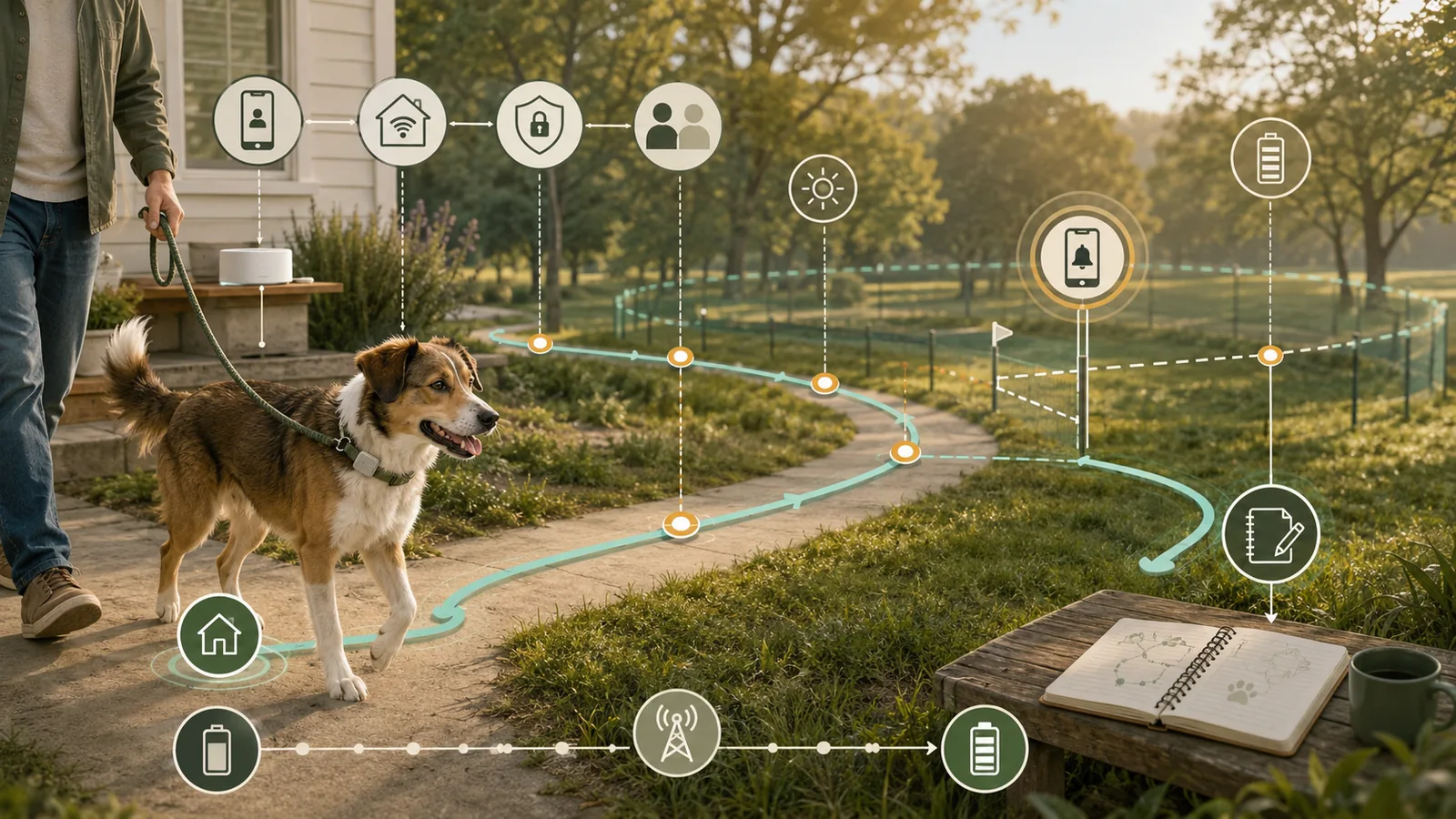
A tracker should not become part of an escape plan merely because it activated once. This workflow separates identity, account setup, home connection state, permissions, zone alerts, a controlled outdoor route, caregiver access and battery observations so failures and unknowns stay visible.
Quick answer
Do not treat activation as validation: before relying on a cellular pet tracker, verify the exact model and service, charge path, mount or band, home connection state, permissions, notifications, intended boundary, second-account response path, and a controlled outdoor route in the modes you expect to use.
The result remains local and conditional because a successful walk applies only to that route, time, phone, account, settings, and network context and does not guarantee indoor coverage, future alerts, battery runtime, attachment safety, or recovery.
Official setup context for this comparison comes from the Fi Series setup instructions and Tractive DOG 6 setup instructions; neither source is an independent test.
Swipe horizontally to see all columns.
| Decision field | Fi Series 3+ | Tractive DOG 6 | What the record can establish |
|---|---|---|---|
| Activation | Membership, app, Base/device activation | Subscription, app, tracker ID | Whether the declared account path is ready |
| Home state | Fi Base and/or saved Wi-Fi | Optional Power Saving Zone or Base Station | Whether the home dependency is configured |
| Outdoor check | Lost Mode walk; not a car ride | Hand-carried or securely leashed LIVE walk | Route-specific observed behavior only |
| Zone alert | Safe Zone | Virtual Fence | Whether the tested phone chain produced an alert |
| Battery | Conditional vendor estimates | Conditional vendor estimates | A bounded household baseline – not days of runtime |
| Independent test by Pet Signal Guide | No | No | Not established |
Activation confirms only part of the setup path; reliance requires exact identity, home state, alerts, a controlled route, battery observations, and human response to be checked separately.
Key facts
- Protocol scope
- Identity, activation, phone and account setup, home state, alert chain, controlled route, battery observation, attachment, and recovery.
- Worked examples
- Fi Series 3+ and Tractive DOG 6, with each product kept inside its exact documented setup architecture.
- Observation boundary
- A route result describes only the recorded route, time, device, phone, account, settings, mode, and network context.
- Safety boundary
- Use a responsible handler, a hand-carried device when practical, or a securely leashed pet; never simulate an escape or depend on the tracker to prevent harm.
What a setup test can – and cannot – prove
A useful record can show whether the declared account signs in, whether the device appears charged and connected, whether a route produced positions, whether the configured boundary generated alerts on the intended phones, and how much battery changed during that observation window.
It cannot prove universal accuracy or coverage. Mobile maps are modeled planning tools, and a phone speed test does not validate the tracker modem, vendor cloud or app. Location, transmission, cloud processing, phone delivery and human response are separate stages.
Use the current dog GPS tracker buyer guide for product-selection context. This workflow starts after the household has an exact tracker path to configure.
Before you start: make the test controlled and reproducible
Use a responsible handler, a hand-carried device for the first route when practical, or a securely leashed pet. Do not release a pet, simulate an escape, substitute a car ride for Fi’s documented walk test, enter unsafe or private areas, or create a condition that depends on the tracker to prevent harm.
Warn household members before a test that may trigger lost-pet or boundary alerts. Record the date, time zone, route reference, phone, operating system, app, mode, settings, battery and home connection state before leaving. Keep precise home coordinates and access credentials out of public notes.
Swipe horizontally to see all columns.
| Preflight item | Record before testing | Stop condition |
|---|---|---|
| Exact identity | Product, model, mount/band, charger/Base | Delivered product or instructions do not match |
| Service | Membership/subscription active | Required service inactive |
| Phone and app | OS, app, owner account, permissions | Unsupported phone, login failure, required permission off |
| Charge | Start percentage and time | Battery not charged or charge path unclear |
| Attachment | Exact mount/band instructions and visual check | Damaged, loose, incompatible or unverified |
| Human control | Responsible handler; hand-carried or securely leashed | Escape simulation, vehicle substitution or unsafe route |
Stop before testing when identity, service, phone, charge, attachment, or human control is unresolved, and never simulate an escape to test a tracker.
Verify identity, activation, phone and charge path
Match the delivered hardware, model, mount or band, charger or Base and current instructions. Fi Series 3+ and Tractive DOG 6 use different setup architectures. A sibling model’s charger, app requirement or attachment rule should not be inherited.
Fi’s current setup path uses a supported phone, account, service, powered Base, 2.4 GHz Wi-Fi, location/Bluetooth permissions and notifications. Tractive DOG 6 setup uses an app account, tracker ID, active subscription, current compatible phone and a USB-C/5V charging path. Complete only the path supported by the exact current instructions.
Swipe horizontally to see all columns.
| Workflow field | Fi Series 3+ | Tractive DOG 6 |
|---|---|---|
| Current phone floor | iOS 16+; Android 9+ | iOS/iPadOS 17+; Android 10+ plus Android certification requirements |
| Home dependency | Powered 2.4 GHz Fi Base and/or saved Wi-Fi | Tracker cellular path; optional Wi-Fi Power Saving Zone |
| Permissions | Always location; precise on iOS; Bluetooth; notifications | Current app/phone permissions and notifications |
| Charge path | Compatible Fi Base; vendor typical around 3 hours | USB-C and 5V source; vendor around 2 hours |
| Outdoor test | Lost Mode walk; pack members warned | Short hand-carried or securely leashed LIVE walk |
| Interpretation | Base/Wi-Fi/phone context can mask GPS/cellular behavior | LIVE is unavailable inside a Power Saving Zone |
Fi Series 3+ and Tractive DOG 6 have different activation, home-state, permission, charging, and outdoor-mode paths; do not transfer one product’s setup rule to the other.
Build the home baseline before leaving the property
Record what the tracker considers home. For Fi, check whether the device sees the Base, saved Wi-Fi or owner phone, and map Base coverage across relevant rooms, floors and yard areas. For Tractive, record whether the tracker is inside a Power Saving Zone; GPS reporting pauses there and LIVE Tracking is unavailable until it leaves.
Configure the exact boundary only within current documented limits. A zone edge is not a physical fence. Its purpose in this workflow is to expose the alert chain, not to contain a pet.
Swipe horizontally to see all columns.
| Check | Fi | Tractive | Record |
|---|---|---|---|
| Home connection | Base/Wi-Fi/phone connection source | Power Saving Zone or no zone | Connection/zone state |
| Boundary | Safe Zone within current limits | Virtual Fence within current limits | Shape, size and active state |
| Indoor interpretation | GPS limited; Base/Wi-Fi context matters | GPS can be obstructed; PSZ pauses reports | Room/floor/yard observations |
| Exit/re-entry | Lost Mode and Safe Zone chain | LIVE and Virtual Fence chain | Timestamps and phone recipients |
| Digital-boundary limit | Not physical containment | Not physical containment | Human supervision remains required |
Record the exact home connection and boundary state before leaving, but never treat a digital zone as physical containment.
Test the account and alert chain – not just the owner’s screen
List every person expected to respond. Use separate accounts where the platform supports them, record the role or plan requirement, and verify that access can be removed. Do not treat one owner login as proof that a pet sitter or family member will see the same alert.
For each zone exit or urgent mode, record the device/mode transition, visible app event, phone notification, recipient, timestamp and acknowledgement. If an expected phone does not receive the alert, the workflow has found a stop condition even when the map looks current.
Swipe horizontally to see all columns.
| Stage | Record | Do not infer |
|---|---|---|
| Device/mode | State and timestamp | That the phone already received an alert |
| Network | Base/Wi-Fi/cellular/phone context | Universal coverage from a map |
| Vendor app/cloud | Visible event and time | Cloud uptime outside the observation |
| Phone | Recipient, notification and time | That every household phone behaves the same |
| Human response | Acknowledgement and action | Guaranteed recovery or response speed |
A usable alert test follows the entire chain from device and network through vendor service, phone delivery, recipient acknowledgement, and human action.
Run a controlled outdoor route
Use a short, familiar and safe route. The first Fi branch follows the documented Lost Mode walk rather than a car ride; household members should be warned, and the test should be ended explicitly when complete. The Tractive branch can use the documented hand-carried or securely leashed LIVE walk, while recording whether a Power Saving Zone was active at the start.
Do not grade the route with a single yes/no. Record the first useful position, any gaps, zone exit and re-entry, mode changes, alert timestamps, phone state and the point where the test ended. Repeat a weak segment only when safe; do not broaden a local result into a universal claim.
Swipe horizontally to see all columns.
| Route field | Minimum record | Reason |
|---|---|---|
| Handler | Hand-carried or securely leashed | Avoid escape simulation |
| Mode | Fi Lost Mode or Tractive LIVE | Do not mix routine and urgent modes |
| Home state | Base/Wi-Fi/Power Saving Zone | Explains suppressed or changed reporting |
| Timestamps | Start, zone exit, alerts, gaps, return | Separates detection, delivery and response |
| Phone | OS, app, permissions, connectivity | Preserves delivery context |
| Result | Positions, gaps, alerts and unknowns | Keeps observations local and reproducible |
A controlled route produces a local observation tied to its handler, mode, home state, timestamps, phone, and conditions – not a universal coverage or recovery result.
Coverage and connection limits
A carrier map is a planning input, not a tracker test. Fi’s own coverage material says its maps are general and omit signal strength. Tractive remote reporting also depends on a compatible partner network. Indoor walls, terrain, environmental GPS conditions, network load, phone connectivity, vendor cloud and app background behavior can each affect what the household sees.
A phone speed test may document one phone-network path but cannot validate a tracker radio or cloud chain. When a result fails, record where the chain became unknown rather than assigning the problem to the device without evidence.
Create a battery baseline without inventing days of runtime
Charge through the exact supported path and record start time and percentage. Fi documents Series 3+ charging on its Base; Tractive DOG 6 uses USB-C and a 5V source. Their vendor battery headlines use different conditions and are not household measurements.
For the route, log start/end percentage, elapsed time, mode, zone/home state, alerts or light use and environmental context if known. Do not extrapolate a short walk into weeks or months of battery life. Repeat after major app, firmware, coverage or route changes.
Swipe horizontally to see all columns.
| Field | Record | Interpretation limit |
|---|---|---|
| Start/end | Percentage and timestamps | Short-window observation only |
| Mode | Routine, Lost Mode or LIVE | Modes have different power demand |
| Home state | Base/Wi-Fi/Power Saving Zone | Power-saving context affects use |
| Route/environment | Distance, time and conditions | No universal extrapolation |
| Alerts/light | Whether used during window | Feature use can affect drain |
| Retest trigger | App/firmware/phone/route change | Old result may no longer apply |
Use short-window battery observations as a household baseline only; do not extrapolate them into vendor-style days or weeks of runtime.
Attachment and fit remain separate from electronics
Confirm the exact mount or Fi-compatible band and recheck the delivered instructions. Tractive’s official records differ slightly on the DOG 6 maximum band width, so the stricter retained screen is not a substitute for the delivered mount guide.
A visual setup check cannot establish comfort, retention, skin response or safe fit. Stop if hardware is damaged, loose, incompatible or unverified. This article does not provide veterinary, behavior or individualized fit advice.
Run a bounded failure and recovery drill
Before any reset, preserve non-sensitive evidence: product/model, app/phone versions, service state, time, connection state, zone state, battery, route reference, alerts and visible error. Reopen the exact current troubleshooting page and distinguish restart, reconnection and destructive reset.
A reset may remove settings or create a second problem. It also does not prove a device will recover. If the required account, service, attachment, route or alert chain still fails, stop relying on that path and use the manufacturer’s current support route or the household’s non-tracker recovery plan.
Keep an observation log that another person can interpret
Use one record per route or alert event. Preserve pass, fail, unknown and not-applicable states. Avoid narrative such as “worked fine” without the phone, mode, route, zone and timestamps that make the statement interpretable.
Do not store passwords, door codes, account tokens, precise home coordinates or private medical records in a public/shared copy. A private route reference can point to a household-controlled record.
How the two worked examples differ
Fi Series 3+
Fi’s sequence depends heavily on the Base, saved Wi-Fi, owner-phone permissions and the distinction between ordinary connection sources and Lost Mode. A Base-coverage map and a walk-based Lost Mode record answer different questions; both need timestamps and connection state.
Tractive DOG 6
Tractive’s sequence depends on subscription activation, compatible app/phone, cellular reporting and the difference between Default, LIVE and Power Saving Zone behavior. A missing LIVE path while the tracker remains in a Power Saving Zone should not be interpreted as an outdoor cellular failure.
Neither example is a recommendation or ranking. They demonstrate why one generic checklist cannot replace exact current instructions.
When to stop, escalate or repeat the protocol
Stop before reliance when exact identity, service, phone, account, permissions, charge, attachment, human control, route or required alert fails. Keep the result conditional when a material observation is unknown. Repeat the affected phases after a new phone, app, firmware, membership, carrier, Base/zone, route, mount, caregiver or relevant support change.
Swipe horizontally to see all columns.
| Finding | Action | Why |
|---|---|---|
| Wrong model/instructions | Stop before setup | Sibling instructions may not apply |
| Account/service/phone gate fails | Stop and resolve | Core path is incomplete |
| Attachment unverified | Stop before pet use | Fit/retention not established |
| Route or alert fails | Return to documented troubleshooting/support | Do not rely on a failed chain |
| Observation unknown | Keep conditional and retest | Unknown is not pass |
| Material app/firmware/carrier change | Repeat affected phases | The old context changed |
A failed required gate stops reliance, while an unknown remains conditional and must be retested after any material device, app, service, route, or caregiver change.
Evidence limits
Pet Signal Guide did not perform the protocol. The method tests included in the private package validate schema and decision logic only. They are not product, route, dog, battery, alert, fit or support tests.
No setup result can guarantee recovery, universal coverage, future alert delivery, battery runtime, attachment safety or support continuity. Treat a tracker as one layer in a broader identification, local-search and human-response plan.
Sources
- Federal Communications Commission: What's on the National Broadband Map – Provider-reported modeled mobile coverage; not indoor, route-level, tracker-specific, or future coverage proof.
- Federal Communications Commission: How to Use the FCC Mobile Speed Test App to Challenge Mobile Coverage – Phone-network outdoor/in-vehicle testing guidance; does not validate tracker hardware, cloud, app, or alerts.
- Federal Trade Commission: Securing Your Internet-Connected Devices at Home – General account, update, router, password, and feature-minimization guidance; not exact-product implementation evidence.
- National Institute of Standards and Technology: Profile of the IoT Core Baseline for Consumer IoT Products – Consumer-IoT product-system framing; not tracker certification, penetration test, or reliability result.
- Cybersecurity and Infrastructure Security Agency: Four Cybersecurity Essentials for SLTTs – Current organizational guidance covering phishing, passwords, MFA, and software updates; not household or exact-product implementation evidence.
- Pet Signal Guide: How to Choose a GPS Tracker for a Dog – Published selection context; does not supply a setup observation or guarantee.
- Fi: Set Up Your Fi Series Device – Series setup, phone, Base, Wi-Fi, permissions, Safe Zone, notifications, activation, and caretaker flow; no independent execution.
- Fi: Fi Base functionality and setup – Base charging, 2.4 GHz Wi-Fi, continuous power, Bluetooth placement and vendor range framing; no measured home range.
- Fi: Enable Location Services on the Fi App – Always/precise location and Bluetooth explanation; no permission execution or privacy audit.
- Fi: Wi-Fi Connectivity & Coverage Overview – Wi-Fi role, battery/coverage framing, saved-network and captive-portal context; no reliability measurement.
- Fi: Add, edit and remove saved Wi-Fi networks – Exact app workflow, up-to-six network statement, and captive-portal limitation; no executed setup.
- Fi: Fi Tracker Cellular Coverage – Series 3/3+ AT&T dependency and general map limitation; no route, indoor, latency, or future service proof.
- Fi: Test Lost Mode – Walk-based procedures, household warning, Bluetooth-off and friend-walk branches; no execution or recovery guarantee.
- Fi: Enable Lost Mode – Membership, transition, light, push notification, directions and end workflow; vendor real-time wording is not measured latency.
- Fi: Set Up and Edit a Safe Zone – Shapes, minimum dimensions, alert requirement and app workflow; no phone-delivery measurement.
- Fi: How To Test Fi Base Coverage – Vendor 15-minute room/floor/yard process and timestamp logging; no execution or independent indoor-range result.
- Fi: Add or Remove a View-Only or Restricted Member – Separate-account invitation, limited role and removal flow; no permission or alert execution.
- Fi: Fi Device Battery Life – Conditional vendor estimates by use and Lost Mode; no independent runtime measurement.
- Fi: Charge Your Fi Tracker – Series 3+ Base charging and vendor charge-time framing; no independent charge measurement.
- Fi: Find Your Fi Series Collar Size – Vendor neck ranges, widths and fit instructions; no individual comfort, retention, skin or safety assessment.
- Fi: Fi Series Collar Compatibility – Fi-compatible band requirement; no delivered-band inspection or wear test.
- Fi: Offline Fi Device Troubleshooting – Offline state and model-specific reset workflow; no executed reset, failure prevalence, repair rate or support outcome.
- Fi: Troubleshoot issues with location reports – Vendor GPS/LTE-M and environmental limitation framing; no independent accuracy or frequency study.
- Fi: What's Included With Your Fi Purchase – Package contents and required phone/Wi-Fi/adapter/membership context; no checkout or delivered-box inspection.
- Tractive: Dog GPS Tracker product page – DOG 6 identity and model-specific fields; rendering is geography-sensitive and no checkout or use test occurred.
- Tractive: Get started with your Tractive DOG 6 – Activation, subscription, USB-C, LEDs, attachment and hand-carried LIVE walk; no independent execution.
- Tractive: How to attach your tracker to your pet's collar – Mounting workflow; official records differ slightly on band width; no comfort, retention or wear test.
- Tractive: Do I need cellular coverage? – Partner-network dependency; generic radio labels differ from DOG 6 product specification; no route result.
- Tractive: Do I need Wi-Fi for my tracker? – Tracker cellular path, phone internet requirement and Power Saving Zone Wi-Fi role; no connectivity test.
- Tractive: Is my phone or tablet compatible with the Tractive GPS app? – Current iOS/iPadOS and Android requirements; no app installation or permission test.
- Tractive: What is the difference between Default and LIVE Tracking? – Vendor cadence and Power Saving Zone behavior; not end-to-end latency, accuracy or reliability evidence.
- Tractive: How often does the Tractive GPS tracker detect a new position? – Vendor default and LIVE position cadence; not phone-notification or human-response latency.
- Tractive: How to use Tractive Virtual Fences – Fence types, minimum sizes, shared alerts, vendor timing and troubleshooting; no boundary or phone-delivery measurement.
- Tractive: Power Saving Zone: How-To Guide – Wi-Fi sleep behavior, reporting pause, zone count and LIVE unavailability inside a zone; no execution.
- Tractive: Enable Low Power Mode on my Tractive tracker to save battery – Reduced update frequency and delayed-alert trade-off; availability must be checked in the current app.
- Tractive: How long does my tracker's battery last? – DOG 6 vendor estimates by Power Saving Zone use and coverage; no independent runtime measurement.
- Tractive: How to charge your tracker – DOG 6 USB-C, 5V source, LEDs and approximate charge time; no independent charge measurement.
- Tractive: How to share your tracker with Family Sharing – Premium owner, separate accounts, invitation, listing, removal and owner controls; no app or alert execution.
- Tractive: Tractive subscription plans – Frequently asked questions – Plan and Family Sharing boundaries; not completed checkout, account access or setup observation.