
Quick answer
Secure the whole camera system, not just the device: name one account owner, use a unique password, enable available multifactor authentication, protect the recovery email, update the router and camera, review every shared user and permission, verify what “camera off” means, and document cancellation, deletion, unbinding, and reset before you need them.
This is not a security audit, privacy certification, penetration test, or guarantee. This workflow does not guarantee prevention of compromise. It is a fail-closed checklist for finding missing controls and platform-specific conflicts before a household relies on a connected pet camera.
For the broader product-level screen that comes before this setup workflow, use the Pet Tech Privacy and Security Checklist.
Key facts
The platform examples use current official Petcube sharing, Furbo account-sharing, and Wyze device-sharing records; no account control was executed.
Swipe horizontally to see all columns.
| Question | Evidence-safe answer |
|---|---|
| What is the system? | The camera, app, account, cloud service, router, household users, integrations, subscription, support, and offboarding workflow. |
| What is the first account step? | Name one accountable owner and protect the owner’s recovery email before inviting anyone else. |
| Should a household share the main password? | Avoid it where separate user accounts exist. Furbo currently documents common credentials, so that trade-off must remain visible. |
| Does MFA make the camera secure? | No. It adds an account-control layer but does not establish device, app, cloud, router, or household security. |
| Is “camera off” the same everywhere? | No. A software command, schedule, closed lens, and head-down physical position are different controls. |
| Is account deletion enough? | Not necessarily. Billing cancellation, data download, device unbinding, account deletion, and factory reset may be separate steps. |
A missing or conflicting critical step is a stop condition, not a reason to assume the platform handled it.
Define the system boundary before changing settings
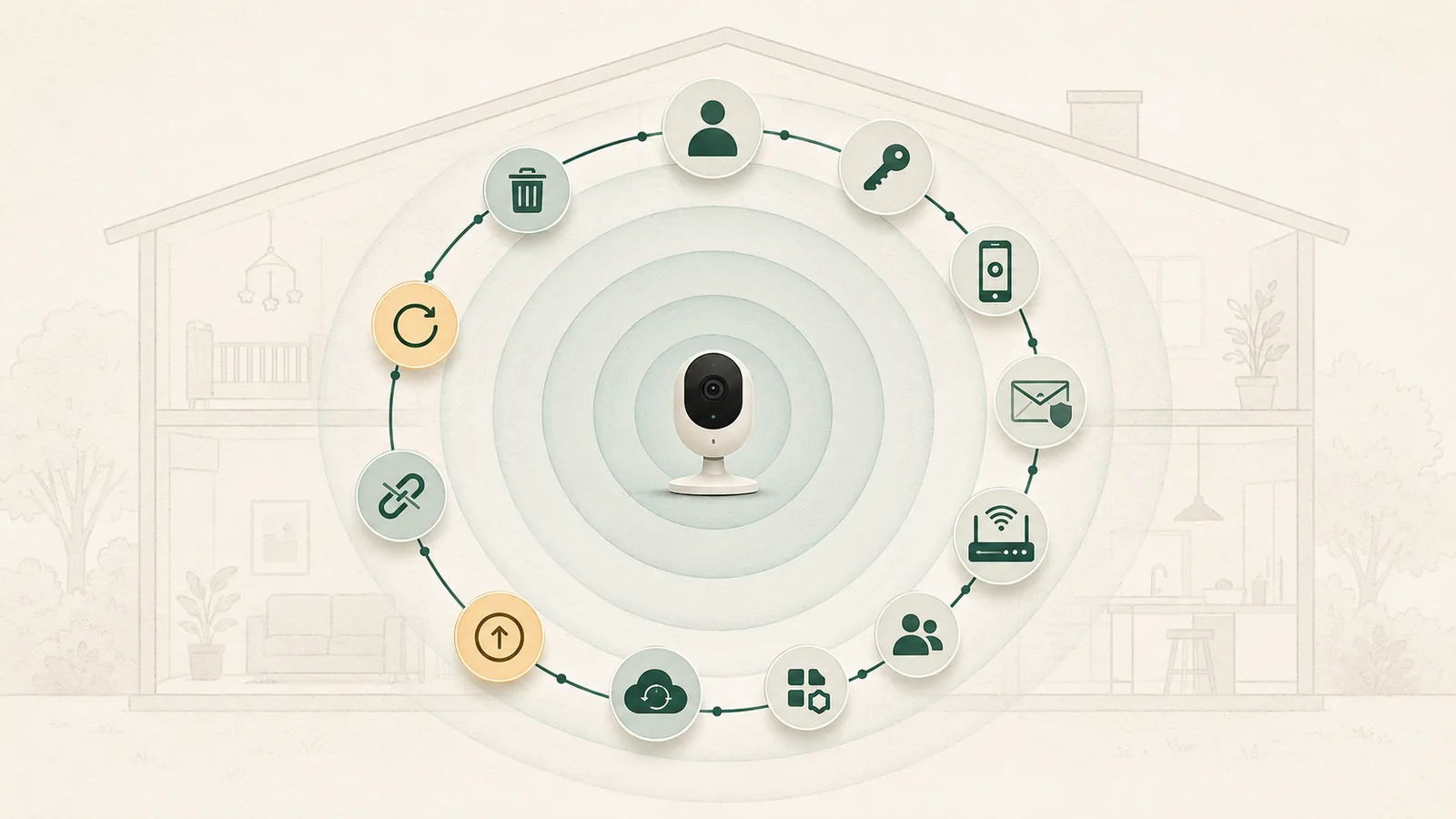
A pet camera is not only a lens and motor. The household decision can involve a mobile app, an owner account, cloud video, Wi-Fi, a router administrator account, invited users, voice assistants, subscriptions, support, and a transfer or disposal path. NIST’s consumer Internet of Things guidance uses this product-level view, while FTC camera guidance asks buyers to examine account, update, remote-access, and sharing controls.
If the household has not yet decided whether this product category fits the intended monitoring job, begin with the Pet Camera Buyer’s Guide before configuring an account.
Swipe horizontally to see all columns.
| Layer | Inventory before setup | Failure or blind spot |
|---|---|---|
| Device | Exact model, power source, reset control, privacy position, firmware state | Sibling-model instructions can be wrong for the exact camera. |
| App and phone | App version, phone owner, permissions, trusted devices, third-party login | An old phone, broad permission, or lost device can retain access. |
| Account | Owner, password, MFA, recovery email, invited users | Shared credentials reduce attribution and targeted revocation. |
| Cloud and subscription | History length, audio, downloads, deletion, seller of record | Canceling a plan may not delete the account or every recording. |
| Home network | Router owner, administrator password, firmware, guest or IoT network | A camera setting cannot repair an unmanaged router. |
| Support and offboarding | Status page, support route, vulnerability route, reset and transfer steps | Support dates and workflows can change after purchase. |
Inventory the device, accounts, phones, network, services, people, and offboarding path together; a secure setting on one layer cannot repair an unmanaged layer elsewhere.
Name one account owner and protect the recovery path
Choose one accountable owner before anyone installs the app. Record the account email, recovery route, seller of record, device location, and who is allowed to approve new users. The recovery email deserves the same care as the camera account because an attacker or former household member may use it to reset access.
- Use an email address the owner expects to retain.
- Protect that email with a unique password and multifactor authentication.
- Store recovery codes or instructions in a trusted place outside the camera app.
- Record whether login is controlled by the vendor or a third-party identity provider.
- Do not invite sitters or guests until the owner can remove them.
Use a unique password, enable available MFA, and review remembered devices
FTC camera guidance and CISA MFA guidance support unique credentials and multifactor authentication as account-protection layers. They do not make a camera secure by themselves. The current public documentation also differs by platform, as shown in Furbo’s two-step record and Wyze’s 2FA record.
Swipe horizontally to see all columns.
| Control | Petcube Cam 360 | Furbo3 | Wyze Cam Pan v3 |
|---|---|---|---|
| Separate household accounts | Documented Family and Friend accounts | Not documented; current sharing guide uses one username and password | Documented separate Wyze accounts |
| Public MFA workflow | Not established in the bounded current record | Email-code two-step verification documented | Two-factor authentication documented |
| Remembered or trusted-device inventory | Not established | Not established | Trusted Devices review and removal documented |
| Recovery boundary | Email password reset documented | Email and password workflow documented | Wyze or third-party provider controls recovery, depending on login path |
Treat “not established” as a verification gap, not proof that a control is absent or present.
“Not established” means the reviewed public record did not prove the control. It does not prove the control is absent. Verify the live app before purchase or setup when MFA, active-session review, or separate identities are hard requirements.
Treat the router and remote integrations as part of the camera
Change the router’s default administrator credential, install current security updates, and review whether a guest or Internet-of-Things network is appropriate. Network separation is not a universal fix; the router must support it correctly, and the household must still manage phones, cloud accounts, integrations, and updates.
Swipe horizontally to see all columns.
| Check | Record | Stop condition |
|---|---|---|
| Router owner | Administrator, model, update route, recovery method | No accountable person can update or recover the router. |
| Administrator access | Unique non-default credential and protected recovery | Default or reused credential remains. |
| Router firmware | Current version or verified automatic update state | Unsupported or unmanaged router with no mitigation. |
| Network separation | Whether guest or IoT isolation works with required phones and integrations | The household assumes isolation without testing normal access. |
| Remote access | Who can view remotely and which features are enabled | Unused remote access cannot be disabled or explained. |
| Integrations | Voice assistants, web view, automations, and third-party services | Former or unused integrations retain access. |
Stop when nobody can account for router ownership, updates, remote access, or integrations; the camera app cannot compensate for an unmanaged home network.
Give each person the least access the household can actually revoke
Create an access inventory that names every owner, household member, sitter, guest, phone, tablet, and integration. Review it after a move, separation, staff change, phone replacement, pet-sitting arrangement, or suspected account event.
- Prefer separate identities when the platform supports them.
- Do not share the recovery email or primary password merely for convenience.
- Record whether a shared user can watch live video, speak, move the camera, see history, change settings, invite others, or remove the owner.
- Remove access when the job or relationship ends.
- Review remembered or trusted devices where the platform exposes them.
Petcube currently documents separate Family and Friend accounts. Wyze documents separate-account sharing and removal. Furbo currently tells household users to share the same username and password even though two-step verification is available. These are different architectures, not minor interface differences.
Review app permissions on every owner and caregiver phone
Permissions can change with the operating system, app version, feature use, or a reinstall. Check the current phone settings rather than relying only on an old support article.
- Microphone and camera access for talk or setup.
- Notifications for alerts and account events.
- Bluetooth or local-network access used during setup.
- Location access, including whether background access is necessary.
- Photo or storage access for saving and sharing clips.
- Cellular-data access and the expected data path away from home.
Remove permissions that are not required for the household’s chosen workflow, then confirm the camera still performs the intended job. The reviewed records do not provide a complete, current, cross-platform permission census.
Verify what the camera does when the household expects privacy
Do not treat every “off” label as the same control. Compare the documented Petcube privacy position, Furbo camera-off workflow, and Wyze Privacy Mode, then check the lens position, indicator, live view, audio, motion, history, alerts, schedule, power state, and behavior after an app or network failure.
The Pet Camera Privacy Scorecard and Research Methodology explains how the current public documentation was screened without turning disclosure into a security score.
Swipe horizontally to see all columns.
| Question | Petcube Cam 360 | Furbo3 | Wyze Cam Pan v3 |
|---|---|---|---|
| Visible lens-blocking state | Vendor describes a closed-lens privacy mode | Not established; app off and scheduling are documented | Head-down Privacy Mode documented |
| Scheduled privacy | Verify current app behavior | On/off scheduling documented | Verify current automation and privacy behavior |
| Cloud-history effect | Verify plan and privacy-mode behavior | Camera-off documentation says viewing, alerts, and history stop | Verify current plan, local card, and privacy-mode behavior |
| Physical verification performed here | No | No | No |
A software off command, schedule, lens-blocking position, and powered-down device are distinct states; verify the visible and recorded result from every household account.
Place cameras only in ordinary shared areas where every affected household member understands the purpose. This guide does not provide covert-monitoring, intimate-space, child-monitoring, employment-surveillance, or legal-consent advice.
Check history, audio, downloads, and deletion as separate controls
Write down whether the household uses live view only, cloud history, local storage, or both. Then verify:
- how much history the selected plan retains;
- whether clips contain audio;
- who can view, download, or share clips;
- whether live view changes recording behavior;
- how an individual clip is deleted;
- what happens when the subscription ends;
- what account deletion claims to remove;
- whether local storage survives account or cloud changes.
A short retention period does not prove privacy, and a long retention period is not automatically better. Match retention to the actual household job and remove access or history the household does not need.
Verify updates, exact-model support, status, and vulnerability routes
Save four different records: the app-update route, firmware-update route, product support page, and vulnerability-reporting route. A service-status page can help distinguish a platform incident from a local problem, but it does not provide a reliability rate.
- Turn on automatic updates where appropriate and verify they still occur.
- Check the exact camera model, not a sibling model.
- Record any public support-end date and the date it was checked.
- Do not convert a vendor support statement into a guarantee.
- Replace, isolate, or stop relying on a device when support ends and no acceptable mitigation exists.
Petcube and Furbo publish current support or update statements for the sampled products. The retained Wyze support table did not establish an exact Cam Pan v3 support end date. Keep that value unknown until an exact current record resolves it.
Cancel billing, preserve needed data, unbind the camera, delete the account, and reset the device
Offboarding is a sequence. Do not assume one button performs every step: compare the current Petcube cancellation, Furbo cancellation, and Wyze seller-specific cancellation records with the separate deletion and reset workflows.
Swipe horizontally to see all columns.
| Step | Evidence-safe action | Why it is separate |
|---|---|---|
| 1. Identify seller | Confirm whether billing is controlled by the vendor website, Apple, Google, or another seller. | The vendor may not be able to cancel a third-party subscription. |
| 2. Cancel renewal | Cancel through the seller and retain confirmation. | Deleting a device or app may not stop billing. |
| 3. Export needed data | Download only clips or records the household is entitled and needs to retain. | Deletion can be irreversible. |
| 4. Remove shared access | Remove users, trusted devices, and integrations. | Former users may otherwise retain a path during transition. |
| 5. Unbind device | Remove or disconnect the exact camera from the account. | Account deletion and device transfer are not always the same workflow. |
| 6. Delete account | Follow the exact current account-deletion workflow and verify billing afterward. | Furbo records conflict and Wyze app-store billing can remain separate. |
| 7. Factory reset | Use the exact model’s reset instructions before transfer or disposal. | Cloud deletion does not establish removal of local credentials or data. |
Cancel and verify billing first, preserve only needed data, remove access, unbind the device, then complete account deletion and exact-model reset as separate recorded steps.
Furbo’s deletion article says the subscription is canceled, while separate cancellation documentation governs renewal and refund handling. The conservative workflow is to cancel first, retain proof, verify billing, and then delete. Wyze explicitly requires separate app-store cancellation when applicable. Petcube’s public device-disconnection workflow does not establish complete account and cloud-data deletion.
Prepare a simple response for suspicious access or an unexpected camera state
- Move the camera out of service or disconnect power if doing so is safe and appropriate.
- Use a known-clean device to protect the recovery email and change the camera-account password.
- Review and remove shared users, trusted devices, sessions, and integrations where exposed.
- Update the app, camera, phone, and router.
- Check the vendor service-status and support pages.
- Preserve only the records needed to describe the event; avoid spreading private footage.
- Contact the vendor through the saved support or vulnerability route.
- Seek qualified local help for stalking, harassment, threats, crime, or legal questions.
This is a household triage sequence, not digital forensics or emergency advice. Do not promise that a password change, reset, or firmware update removed every cause.
Use the platform differences as stop conditions, not scores
The comparison below applies the exact public controls documented by Petcube, Furbo, and Wyze; it does not score or certify any platform.
For the wider documented product context, see the separate Petcube Cam 360 analysis, Furbo camera analysis, and Petcube-versus-Furbo comparison.
Swipe horizontally to see all columns.
| Household requirement | Petcube Cam 360 | Furbo3 | Wyze Cam Pan v3 |
|---|---|---|---|
| Separate caregiver identities | Conditional fit in documentation | Stop: common credentials documented | Conditional fit in documentation |
| Publicly documented MFA required | Stop until exact current evidence is found | Conditional fit; email-code 2-step documented | Conditional fit; 2FA documented |
| Visible lens-blocking state required | Conditional fit in documentation | Stop: only app off/scheduling established | Conditional fit in documentation |
| Trusted-device inventory required | Stop until established | Stop until established | Conditional fit in documentation |
| Exact current support end date required | Conditional fit under current vendor statement | Conditional fit under current vendor statement | Stop until exact Cam Pan v3 date is established |
| Complete, conflict-free offboarding record required | Stop: full account deletion not established | Stop: deletion/cancellation tension remains | Conditional fit with seller-specific cancellation and reset prerequisites |
A conditional fit means only that current documentation does not contradict the stated requirement; it is not a security, privacy, or suitability verdict.
“Conditional fit” means the documentation does not contradict the declared requirement. It does not mean the product is secure, private, correctly implemented, or suitable for the household.
If the unresolved question is whether a pet-specific camera or a general indoor camera better matches the household job, continue with the pet-camera-versus-indoor-security-camera comparison.
What we could not verify
- Whether any sampled control works exactly as described in the current app and firmware.
- Whether Petcube offers a current public Cam 360-specific MFA workflow.
- A complete Petcube account and cloud-data deletion workflow.
- Separate Furbo household identities or individually attributable caregiver access.
- How Furbo account deletion and seller billing resolve in a real transaction.
- Substantive current Furbo privacy-policy text in the bounded research session.
- The exact permission matrix for every shared user and mobile operating system.
- An exact current security-support end date for Wyze Cam Pan v3.
- Encryption implementation, vulnerability absence, update delivery, incident prevalence, or support quality.
- That completing this workflow prevents compromise or protects every person affected by a camera.
Method
Pet Signal Guide reviewed current United States authority and vendor records, normalized account and household controls, preserved conflicts and unknowns, and applied a deterministic workflow. The workflow returns only stop or conditional. It has no score, rating, rank, winner, certification, “secure” result, or product recommendation.
Eighteen regression cases, eighteen invalid-input cases, and five hundred deterministic property cases were used to validate the workflow logic. These synthetic checks test the method, not any camera, app, account, router, cloud service, or household.
Final household checklist
- Name the account owner and recovery contact.
- Use a unique password and protect the recovery email.
- Enable documented MFA or record the gap.
- Review trusted devices, shared users, and former-user access.
- Change router defaults and install current router updates.
- Review network separation, remote viewing, and integrations.
- Review app permissions on every phone with access.
- Verify the exact camera-off and visible privacy behavior.
- Verify app and firmware update settings.
- Record history, audio, download, and deletion behavior.
- Save support, status, and vulnerability-reporting routes.
- Identify the subscription seller and test the cancellation route before an urgent offboarding.
- Document device unbinding, account deletion, and factory reset as separate steps.
- Stop when a critical requirement remains undocumented or conflicting.
Sources
- NIST: Profile of the IoT Core Baseline for Consumer IoT Products – Consumer-IoT product-level cybersecurity outcomes; not a certification or product audit.
- NIST: IoT Network-Layer Cybersecurity Baseline for Consumer IoT Products – Home-router and network-layer outcomes; not proof about a named camera or router.
- Federal Trade Commission: How To Secure Your Home Security Cameras – Consumer guidance on encryption, updates, passwords, MFA, remote viewing and sharing; not a product endorsement.
- Federal Trade Commission: Securing Your Internet-Connected Devices at Home – Consumer guidance on router updates, passwords, network separation and feature reduction; not legal advice.
- CISA: Turn On MFA – General MFA guidance with archive notice; not evidence that a named platform implements MFA correctly.
- Federal Communications Commission: 47 CFR § 8.222 – Cyber Trust Mark registry – Registry-field requirements; not a certification claim for any sampled camera.
- Petcube: Petcube Cam 360 – Exact-product identity, privacy mode, app/Wi-Fi requirements and vendor feature statements; no product test.
- Petcube: Sharing access to your Petcube camera – Separate Family/Friend accounts, broad roles, schedules and removal; current app behavior not executed.
- Petcube: Changing account details – In-app account detail/password workflow; not an executed account test.
- Petcube: Reset account password – Email reset workflow; localized route and no recovery execution.
- Petcube: Petcube security – Vendor encryption and update statements; not an independent security assessment.
- Petcube: Vulnerability Disclosure Policy – Reporting route, product support statement, reset guidance; vendor statement only.
- Petcube: Deleting the Petcube device – Disconnect/delete device workflow; does not establish full account or cloud-data deletion.
- Petcube: Privacy Policy – Collection/use and profile controls; old effective date is a material freshness limitation.
- Petcube: Petcube Care – Cloud-history, alert, trial and plan scope; volatile and not an observed account.
- Petcube: Cancel Petcube Care subscription – Renewal cancellation and refund limitation; separate from device/account deletion.
- Petcube: Petcube Cam support – Support and troubleshooting index; not evidence of response quality.
- Petcube: Petcube Camera factory reset instructions – Current localized exact-product workflow; no reset was performed.
- Furbo: Furbo 360° Dog Camera – Exact camera-only identity and offer context; no purchase or installation.
- Furbo: Create and Share Your Furbo Account – Household sharing by common credentials; not separate caregiver identities.
- Furbo: What is 2-Step Verification? – Email-code verification on a new device; not executed.
- Furbo: How to Enable or Disable 2-Step Verification – Setup and disable workflow; localized route and no execution.
- Furbo: How Furbo Secure Your Privacy – Vendor security/encryption statements; not independent testing.
- Furbo: Provide app permission on your devices – Official app-permission workflow; exact current OS prompts not observed.
- Furbo: Control Your Camera On/Off through App – App camera-off behavior; no physical shutter established and no execution.
- Furbo: Set On/Off Scheduling – Scheduled camera-off workflow; no execution.
- Furbo: Furbo firmware and security support – Firmware/support statements, including support-through date; vendor statement only.
- Furbo: How to Delete Your Furbo Account – Seven-day frozen state, data deletion and claimed subscription cancellation; conflicts with separate billing workflow.
- Furbo: Cancel Furbo Nanny – Renewal cancellation, no partial refund and period-end access; seller path must be verified.
- Furbo: Remove Furbo from your account – Unbind/transfer workflow; current account/device state not executed.
- Furbo: Privacy Policy – Official route resolved, but substantive policy text was not reliably extractable in bounded research.
- Wyze: Wyze Cam Pan v3 – Exact-product identity and physical privacy position; no product test.
- Wyze: How do I create a Wyze account? – Account creation/login options; no execution.
- Wyze: Two-Factor Authentication – 2FA methods and third-party login boundary; no execution.
- Wyze: Managing your Trusted Devices – Trusted-device review/removal and 90-day remembered-device behavior; no account test.
- Wyze: How do I share a device in the Wyze app? – Separate-account sharing, invitations, updates and removal; current permission breadth not fully mapped.
- Wyze: How do I keep my Wyze account secure? – 2FA and separate-account sharing guidance; not an independent assessment.
- Wyze: What is Privacy Mode? – Head-down physical privacy position; not executed.
- Wyze: Manage automatic firmware updates – Automatic update controls; no firmware observation.
- Wyze: How do I delete my Wyze account? – Irreversible deletion, cloud-data loss, device reset and app-store cancellation prerequisites.
- Wyze: How do I cancel my Wyze subscription? – Seller-of-record cancellation and refund limits; separate from account deletion.
- Wyze: Privacy Policy – Collection/use/rights record; not proof of implementation or security.
- Wyze: Security support and legal information – Model support-table context; exact Cam Pan v3 support date not established.
- Wyze: Service Status & Known Issues – Current incident/status route; not a reliability rate.
- Wyze: Change microphone permissions – Example OS/app permission workflow; not a complete permission census.